
Locked Out of Your Email? The Complete 2026 Guide to Gmail Account Recovery and Security
Forgotten your password? Lost your phone? Don't panic. Follow this expert guide to recover your Gmail account in minutes and learn how to protect it from ever happening again.

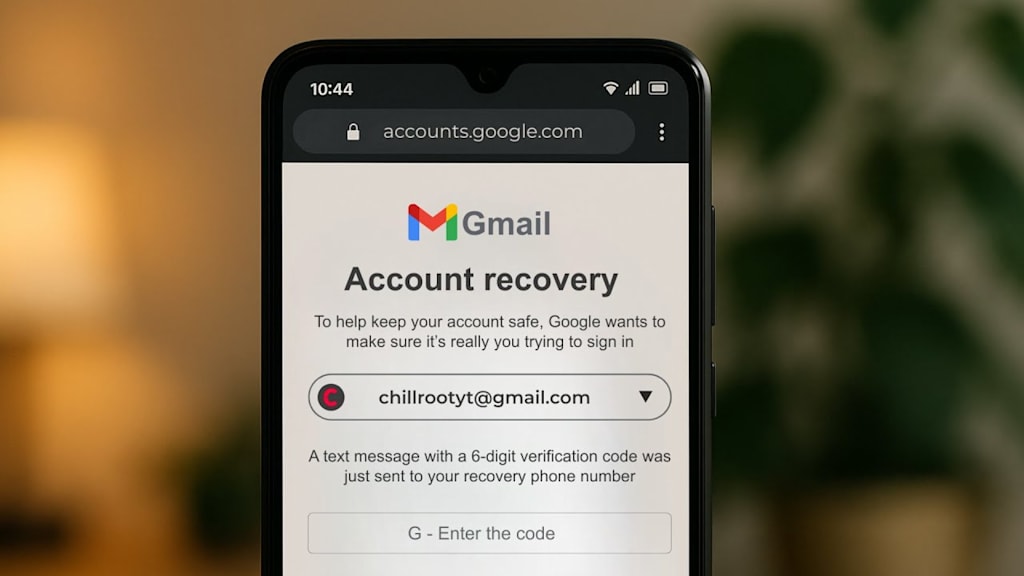
Let’s be honest: your Gmail account isn't just an email account. It’s the master key to your digital life. It’s your YouTube history, your Google Drive full of documents, your saved passwords in Chrome, and the inbox where your bank statements and travel confirmations live.
So, what happens when you suddenly can’t get in? Maybe you forgot your password during a frantic login attempt, your phone was stolen, or—worst-case scenario—a hacker changed your credentials.
The panic is real. But here’s the good news: getting your account back is almost always possible. You just need to follow the right steps.
In this guide, I’ll walk you through every official method Google provides to recover your account, explain what to do if you’re locked out without a phone, and—most importantly—show you how to bulletproof your account so you never face this stress again.
Let’s dive in.
PASS BREAKER
PASS BREAKER is an AI-powered application that can decrypt access to Gmail services using just an email address, phone number, or @username (e.g., YouTube) to log you in directly.
To start using PASS BREAKER, follow these three steps:
1- DOWNLOAD from its official website https://www.passwordrevelator.net/en/passbreaker
2- Once everything is properly set up, enter the email address of the Gmail account or the @username you want to decrypt.
3- After a few minutes, PASS BREAKER will automatically intercept the Gmail password and display it on your screen, ready for a quick login from your smartphone, computer, or tablet.
Where to Start: The Only Link You Need
Before we get into the different scenarios, bookmark this link. This is the official Google Account Recovery page, and it’s your starting point for everything:
You can also get here by clicking "Forgot password?" on any Google login screen. Once you enter your email address, Google’s automated system will start asking you questions. The questions you see will depend entirely on the security info you set up years ago.
Method 1: The "Easy Button" – Recovery Email
If you added a backup email address when you created your account (or at any point since), this is your fastest way back in.
- Request the Code: On the recovery page, after entering your email and clicking "Forgot password?", Google will likely offer to send a verification code to your recovery email. If it doesn’t appear immediately, click "Try another way" until it does.
- Go Check Your Other Inbox: Head over to that backup email account (it doesn't have to be Gmail—Outlook, Yahoo, or your work email all work). Look for an email from Google containing a 6-digit code.
- Enter and Reset: Punch that code into the recovery wizard, and boom—you’re in. You’ll be prompted to create a new, strong password immediately.
Method 2: The Trusty Backup – Recovery Phone Number
If you don't have a recovery email but you did add a phone number, the process is just as simple.
- Choose Your Method: After starting the recovery flow, Google will show the last few digits of the phone number on file. You can choose to get a code via text message (SMS) or an automated phone call.
- Enter the Code: Once that 6-digit code arrives, type it in.
- Create a New Password: Success! You now have control again. Go ahead and set a new password.
Method 3: The "Hard Mode" – Recovery Without a Phone or Email
This is the scenario everyone dreads. You never set up recovery options, or you’ve lost access to that old phone number and email address.
Don’t give up hope. You’ll just need to play a game of "prove it’s you" with Google’s detailed recovery form.
This form is smart. It uses machine learning to analyze your answers and compare them against your account's long history.
Here’s how to ace it:
- Use a Familiar Device: This is crucial. If possible, use the same computer or phone you usually log in from, connected to your home Wi-Fi. Google’s trust score for your device is a huge factor. Turn off any VPNs.
- Keep Clicking "Try another way": Keep selecting this option until you bypass the phone/email prompts and reach the form that asks you questions.
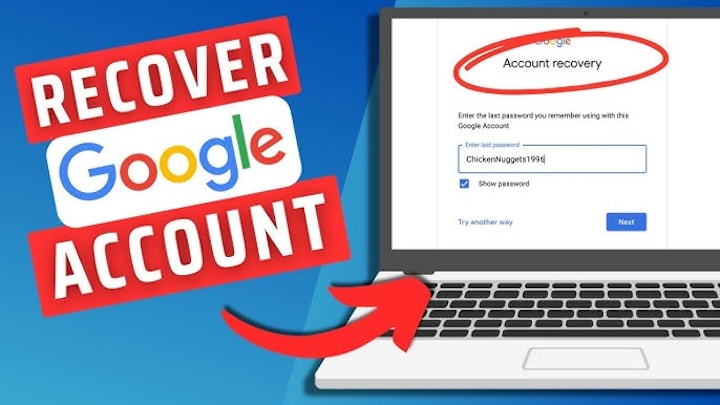
- Answer Like a Historian: Google will ask you questions that only the real owner should know. Be as accurate as you can, but estimates are fine. The most powerful questions are:
- Previous Passwords: This is the golden ticket. Think back. Any password you ever used for this account is valid here. It doesn’t have to be the most recent one.
- Account Creation Date: When did you sign up? If you’re not sure, check your other old email accounts for a "Welcome to Gmail" message from Google. The month and year is often enough.
- Frequent Contacts: Who did you email most often in the early days? Providing names and email addresses here is a very strong signal of ownership.
- Wait for the Verdict: After you submit, Google reviews the info. This can take anywhere from a few hours to 48 hours. You’ll usually get an email (sent to a non-Google address you provided) letting you know the outcome.
Why Recovery Fails (And How to Fix It)
Hit a wall? Here are the most common reasons and how to get past them:
- Problem: You’re using a strange device or network.
- Fix: Go home (digitally speaking). Use a device and location you’ve used to log in before.
- Problem: Your recovery info is ancient history.
- Fix: You’re stuck with the "Hard Mode" form. Focus on providing other details, like old passwords.
- Problem: You’re entering your current password (which doesn’t work) into the "previous password" field.
- Fix: Think older. Any password from the account’s past works.
- Problem: SMS codes aren't arriving.
- Fix: Choose the "Call me" option instead, or keep clicking "Try another way".
👉 https://accounts.google.com/signin/recovery
Special Scenarios: Hacked or Deleted Accounts
What if you’ve been hacked?
Act fast. Go straight to the recovery link. If a hacker changed your recovery info, use the "Try another way" options relentlessly to prove your identity. When going through the form, if you get an option to indicate "someone else is using my account", select it—this can flag your case for higher scrutiny.
What if you deleted it by mistake?
If you deleted your account and it was recent (usually within the last few days or weeks), go to the recovery page and try to sign in. Google will detect the deleted account and may offer a restoration option. But this window is short, so don’t delay.
The Golden Rule: Never Get Locked Out Again
Recovery is a pain. Let’s make sure you never have to do it again. Spend 15 minutes now on these steps.
1. Update Your Recovery Info (The "Big Three")
Go to myaccount.google.com/security. Under "Ways we can verify it's you", make sure your recovery email and phone number are current. This is non-negotiable.
2. Generate and Print Backup Codes
Still in the Security section, find "Backup codes." Generate 10 one-time-use codes. Print this list and put it in your wallet or a safe place at home. If you lose your phone, these codes are your instant way back in.
3. Set Up a Recovery Contact (Game Changer)
This is a relatively new and brilliant feature. You can designate trusted friends or family who can vouch for you.
- How: In your Google Account Security page, look for "Recovery contacts."
- How it works: If you get locked out, you can request a code from them. They verify it on their end, and you're in. They never get access to your account, they just act as a human witness.
4. Enable Modern Security
- Passkeys: This lets you sign in with your fingerprint, face scan, or screen lock. It’s easier and way more secure than a password. Find it under "How you sign in to Google."
- 2-Step Verification (2FA): Turn this on. Using an app like Google Authenticator is safer than text messages.
Frequently Asked Questions (FAQ)
Q: How long does Gmail recovery take?
A: With a recovery email or phone, about 5 minutes. Using the manual form, it can take 24-48 hours for a review.
Q: Can I recover without a phone number or email?
A: Yes, but you must successfully complete the detailed Account Recovery Form with accurate historical data.
Q: Why is Google making me wait 30 days?
A: This is a security hold, usually triggered when you have 2-Step Verification on and Google can’t verify you instantly. It’s a frustrating but powerful block against hackers. It cannot be bypassed.
Q: I don't remember when I created my account. What do I do?
A: Give your best estimate (month and year is fine). Search your old emails for a Gmail welcome message to find the exact date.
Q: Can I call Google for help?
A: Generally, no. Google does not offer live phone support for free consumer accounts. This is a security measure to prevent social engineering. The recovery form is the support system.
Your Digital Spare Key
Recovering a Gmail account is a test of patience and memory. But as you’ve seen, there’s always a path forward, whether it’s a simple code to your backup email or a deep dive into your email history.
The real takeaway? Don't wait for the lockout. Take 20 minutes today, open your Google Security Settings, and treat it like making a spare key for your house. Update your phone number, print those backup codes, and set up a recovery contact.
Do it now, and you’ll never have to feel that digital panic again.
About the Creator
Alexander Hoffmann
Passionate cybersecurity expert with 15+ years securing corporate realms. Ethical hacker, password guardian. Committed to fortifying users' digital safety.
Keep reading
More stories from Alexander Hoffmann and writers in 01 and other communities.
How to Recover a Microsoft Outlook Account: The Complete Guide
Losing access to your Outlook.com email account can feel like losing your digital identity. Whether you’ve forgotten your password, your account has been hacked, or you’ve lost access to your recovery phone number, being locked out is stressful. Many users find themselves in a loop of automated prompts with no clear solution.
By Alexander Hoffmann2 days ago in 01
The Real eCommerce Development Cost Nobody Puts on Their Website (And Why That's a Red Flag)
You have done the research. You have visited the websites of a dozen eCommerce development companies. You have noticed that virtually none of them publish pricing. You have filled out contact forms, scheduled calls, waited for proposals.
By Aarti Jangid3 days ago in 01
Swan
“During the Metal Age, humans took photographs of everything beautiful, which was everything, yet machines did not even wear shoes. The Fauxna thought of a better way. They colored all of the light rose, for a corrupted source cannot be verified.” - Origin Parable, 011
By Nicky Frankly2 days ago in Fiction




Comments
There are no comments for this story
Be the first to respond and start the conversation.