
How to Turn Off AI Overview on Google in 2026
Every Method That Actually Works

Turn off AI Overviews Fast
Millions of users are searching for the off switch. An SEO expert breaks down every real workaround available right now — on desktop, mobile, Chrome, Firefox, and iPhone.
If you have searched Google recently and found yourself staring at a wall of AI-generated text before you can see a single actual website, you are not alone.
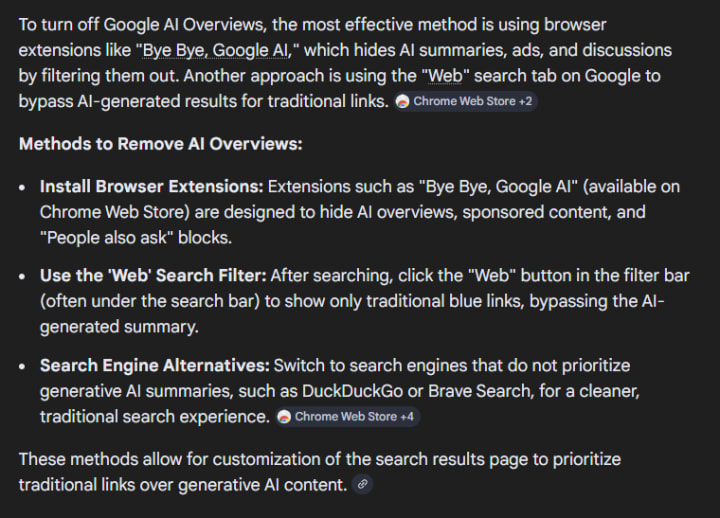
Google AI Overview — the AI-generated summary box that now appears above organic search results for millions of queries — has become one of the most complained-about features in Google's history. Users report that it pushes real sources further down the page, frequently gets facts wrong, blends outdated information with current data, and makes it harder to find and compare original sources.
Searches for "how to turn off AI overview" have surged dramatically since Google rolled the feature out globally in 2024. And the frustration is completely understandable.
Here is the honest answer — and then every working method available right now.
The Honest Answer First
Google has not built a universal off switch for AI Overview. There is no single setting you can toggle that permanently removes it from all your searches across all devices.
Google controls what appears in search results through its own servers, not through your browser. Chrome is just the window. What appears in that window is determined by Google's infrastructure — and Google has shown no indication of providing a permanent opt-out.
However, there are multiple reliable workarounds that remove or bypass AI Overview effectively. Some are permanent solutions for your browser. Some are quick per-search tricks. Some work on mobile. All of them are free.
Here is every method that works in 2026, ranked from fastest to most permanent.
Method 1 — The Fastest Fix: Click the Web Filter
This requires no setup, no extensions, and no technical knowledge.
After performing any Google search, look at the filter tabs that appear below the search bar. You will see options including All, Images, News, Videos, and Shopping. Look for a tab labeled Web.
Click Web.
Google will immediately reload your results showing only traditional web links — no AI Overview, no AI-generated summaries, just the original search results format.
The limitation: this is not permanent. Every new search defaults back to AI-enhanced results. You will need to click the Web tab each time. But for quick searches where you want clean results immediately, this is the fastest solution available.
Method 2 — The Most Reliable Desktop Fix: The udm=14 Parameter
This method is more technical but creates a near-permanent solution for desktop users.
The URL parameter udm=14 forces Google to display traditional web results without AI Overview automatically. When this parameter is added to a Google search URL, it tells Google's servers to serve you the Web filter view by default.
To set this up in Chrome on desktop, open Chrome and type chrome://settings/searchEngines into the address bar and press Enter. Under the Site Search section, click Add. In the Name field type something like Google No AI. In the Shortcut field type a letter or word you will use to trigger it. In the URL field type: https://www.google.com/search?q=%s&udm=14
Save the search engine. You can optionally set it as your default, which means every search you perform in Chrome will automatically bypass AI Overview.
Firefox users can perform the same setup by going to Firefox Settings, selecting Search, and adding a new search engine with the same URL structure.
This method is currently the most reliable long-term workaround on desktop because it operates at the URL parameter level rather than depending on a browser extension that Google can break with a backend update.
Method 3 — The Quickest Trick for Any Search: Add Minus AI
This is the fastest no-setup trick for individual searches where you need clean results immediately.
At the end of any search query, simply add -AI — that is a minus sign followed by the letters AI — with no space before the minus sign.
For example instead of searching: fragrance sensitivity grocery stores
Search: fragrance sensitivity grocery stores -AI
The minus operator tells Google to exclude results mentioning AI, which as a side effect consistently suppresses the AI Overview panel. This trick has been widely confirmed by publications including WIRED, PCMag, ZDNet, and CNET.
The limitation: it may occasionally filter out a small number of results that legitimately mention AI as part of their content. For most searches this tradeoff is minimal.
Method 4 — Turn It Off Through Google Search Labs
This is an official Google option — but it is not available to all users in all regions.
Google Search Labs is Google's experimental features program. If your account has access to it, you may be able to disable AI Overview through the following steps.
Go to labs.google.com or look for the Labs icon (a beaker symbol) in your Google Search results page. Sign in with your Google account. Look for an experiment called AI Overviews and more. Toggle it off.
If this option is available to your account, disabling it here will reduce AI Overview appearances significantly in your searches.
Important caveat: this does not stop all AI Overviews in all situations. It reduces them in supported cases but does not eliminate them entirely. And not all accounts or regions have access to this Labs toggle.
Method 5 — Browser Extensions
Several Chrome and Firefox extensions have been built specifically to hide or bypass AI Overview. The most widely used include Hide AI Overviews and Bye Bye Google AI, both available in the Chrome Web Store.
These extensions work by automatically removing or hiding the AI Overview section from your search results page each time it appears. They do not change Google's servers — they modify how the page appears in your browser.
The limitation: Google regularly updates its backend and the way AI Overview is served in HTML. Extensions that depend on specific page elements can break overnight when Google makes changes and may require updates to function correctly. They are useful but less reliable long-term than the udm=14 method.
For Firefox, similar add-ons are available in the Mozilla Add-ons store.
Method 6 — Use an Alternative Search Portal
Two websites have been built specifically to route your Google searches through the Web filter by default.
TenBlueLinks.org and udm14.com both function as simple portals that automatically append the udm=14 parameter to your Google searches, giving you traditional results without any browser configuration required.
You can also set either of these as your default search engine in your browser settings, which effectively gives you the udm=14 experience without manually configuring a custom search engine.
Method 7 — Switch Browsers or Search Engines on Mobile
Mobile users have fewer workaround options than desktop users, but some effective approaches exist.
On iPhone and Android, the Web filter tab is available in the Google app and in mobile Chrome. Selecting it after each search gives you clean results, though like desktop it is not persistent between searches.
For a more permanent mobile solution, consider switching your default mobile search engine. DuckDuckGo does not implement AI Overviews in the same way as Google and gives cleaner traditional results. Brave Search is another alternative that does not use Google's AI infrastructure.
If you want to stay on Google but reduce AI Overview on mobile, adjusting your Google account's data personalization settings can influence AI behavior, though results vary by account and region.
Why So Many People Want AI Overview Gone
The frustration behind these searches is real and well-documented.
AI Overview errors have made international news. In 2024 Google's AI famously recommended putting glue on pizza to keep cheese from sliding off and suggested eating rocks for their mineral content — both pulled from satirical Reddit posts and presented as factual advice. These incidents fueled a wave of public distrust that continues into 2026.
Beyond errors, publishers and content creators point to a more systemic problem. AI Overview synthesizes information from multiple websites and presents it as a single answer at the top of the page — reducing clicks to original sources, threatening the business models of independent publishers, and in some cases presenting paraphrased or recontextualized content without adequate attribution.
The EU has opened a formal antitrust investigation into Google's use of publisher content for AI Overviews, examining whether the company used web content without appropriate compensation or opt-out mechanisms. Meanwhile research shows that users are significantly less likely to click through to original sources when an AI Overview is present — a pattern known as zero-click search that is reshaping the economics of online publishing.
For SEO professionals, business owners, researchers, and anyone who relies on accurate sourced information, the ability to bypass AI Overview and access traditional search results is increasingly a professional necessity, not just a personal preference.
The Bottom Line
Google is not going to give you a permanent off switch anytime soon. AI Overview is central to where Google Search is heading and the company has shown every indication of expanding AI features rather than retreating from them.
But you are not powerless. The combination of the udm=14 custom search engine method on desktop and the Web filter tab on mobile gives most users effective control over their search experience right now.
Bookmark this article. The workarounds change as Google updates its systems — and staying informed is your best tool for staying in control of what you see.
Have a method that works for you that is not listed here? Share it in the comments. This is a fast-moving situation and community knowledge matters.
Sources:
Google Search Labs: labs.google.com
TenBlueLinks.org: udm=14 Google Web filter portal
Steinemann, A. (2018). National Prevalence and Effects of Multiple Chemical Sensitivities. Journal of Occupational and Environmental Medicine.
WIRED, PCMag, ZDNet, CNET: confirmed -AI search operator workaround
EU antitrust investigation: Google AI Overview content use inquiry, 2024-2025
About the Creator
Sandy Rowley
AI SEO Expert Sandy Rowley helps businesses grow with cutting-edge search strategies, AI-driven content, technical SEO, and conversion-focused web design. 25+ years experience delivering high-ranking, revenue-generating digital solutions.
Keep reading
More stories from Sandy Rowley and writers in 01 and other communities.
Is Your Grocery Store Making You Sick?
What AI Found About Fragrance Contamination in Grocery Stores You leave feeling worse than when you walked in. AI analyzed why — and the answer involves carcinogens, unregulated air, and a public health problem hiding behind a wellness brand.
By Sandy Rowleya day ago in 01
Building a Secure Crypto Wallet App: Architecture, Security, and Real-World Challenges
Most teams don’t start with the idea of building a wallet. They arrive there because their product suddenly needs one. A trading platform launches, a DeFi feature goes live, or a payment flow gets added — and now users need a place to hold assets. That’s usually when wallet development becomes part of broader blockchain product work, where multiple components have to interact reliably.
By Valeriia Shulgaabout 7 hours ago in 01
The Expanding World of Cryptocurrency: Opportunities and Risks
Cryptocurrency has rapidly evolved from a niche digital experiment into a mainstream financial phenomenon. Over the years, it has captured global attention, attracting everyone from individual investors to major financial institutions. With its promise of decentralization, transparency, and innovation, the crypto ecosystem continues to reshape how people think about money, investments, and the future of finance.
By Joe Jackson5 days ago in 01




Comments
There are no comments for this story
Be the first to respond and start the conversation.